
A quiz in class, on the projector, without student accounts
Ten questions at the end of a lesson, the class answering on their phones, nothing for the students to sign up for. QuizDock runs on the school’s server or on your own laptop: the quiz goes on the projector, students join with a PIN or a QR code, and the results stay in its database.
How fast can I get a quiz on the projector?
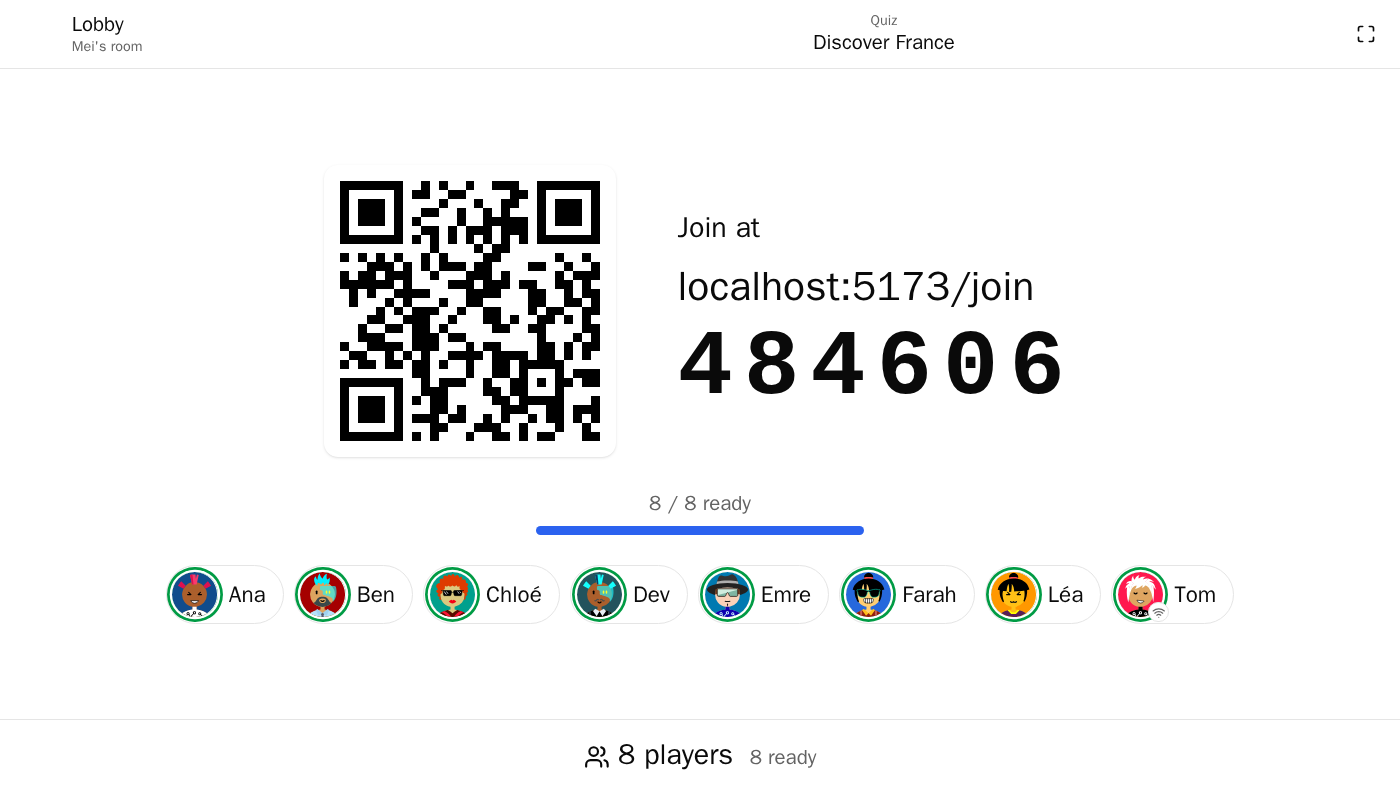
In local mode, open the Host area, type your name and choose Take the host seat. In My quizzes, pick a quiz marked ready and choose Present. The lobby shows a 6-digit PIN and a QR code; Projection window opens the big screen for the projector, and Fullscreen fills it. Start the quiz as soon as the class is in.
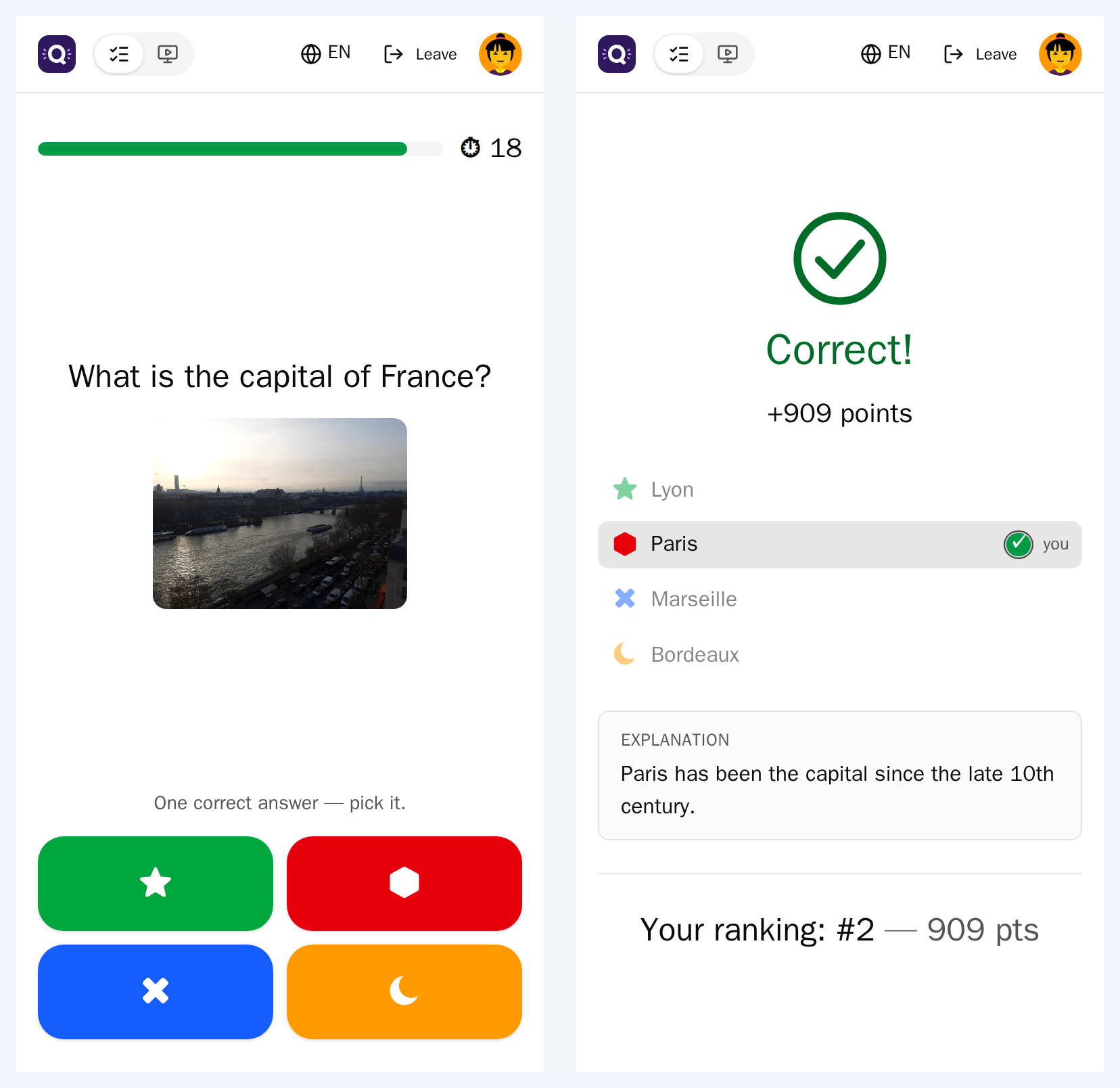
Students open the address on the projection or scan the QR code, type a nickname of 2 to 20 characters, pick an avatar and tap I’m ready. Nobody but you has an account. A phone that loses the connection comes back with its score on the same device.
The host seat is taken by name, with one host at a time: local mode is for a network you trust. See Plug-and-play and Start a room.
Can I use pictures, video and sound?
Yes. Each question takes one visual (an image or an uploaded video) and a sound, and slides can sit between questions. Files are converted in your browser before upload; use Chrome or Edge for video, as Firefox cannot re-encode it. Start the timer when the media ends makes the class listen first, then answer.
By default the projector plays the video and the sound, and phones in the room show the question’s image and stay silent. The media picker lists free libraries under Find elsewhere:, and each file carries its credit line. See Media and the media guide.
Do I have to retype the quizzes I already have?
No. Import in My quizzes takes a spreadsheet made with Kahoot’s official template: the wording, the answer order, the correct answers and the time limits come across, and the report says how many questions were imported. Pictures and sounds do not; incomplete rows arrive marked Unfinished.
For a PDF, a worksheet or a photo of a paper quiz, the Documentation gives a prompt and a format guide to hand a chatbot, which writes a file QuizDock imports. What you send goes to the chatbot’s provider, and its correct answers need checking. Colleagues on the same instance can also offer each other quizzes in Templates. See Import a quiz and Templates and community.
Which questions did the class miss?
When you close the room, Archive this quiz’s results is ticked by default. The quiz’s History then lists each session; a session shows Results by question (answers, success rate, average time) and the Players table (rank, nickname, score, correct answers, streak).
Export (CSV) downloads that table as a file a spreadsheet opens. Each student’s answers, question by question, are kept only if Record all answers was on for that session. See Reports and history and Export results.
Will it work on the school network, or with no Internet?
Phones open the Invitation address chosen in the lobby: a detected network address of the
machine, the public address, or Other address…. “localhost” only works on the computer itself,
and the console warns about it. Docker Desktop hides the computer’s address: type it in, or set
HOST_LAN_IPS. Many guest Wi-Fi networks keep devices from seeing each other; the setup
wizard’s Test from a phone shows whether an address answers.
With no Internet, answer No to “Does this instance reach the Internet?” in the wizard. See Networking and Self-hosted.
What is kept about my students?
You decide under Before starting, and the choice is fixed once the quiz starts. Personalised tracking is on by default; off, no individual result is kept, only the group’s overall results. Record all answers is off by default; turning it on asks for confirmation and warns that it is personal data.
Each phone shows the matching notice, for instance “Your individual results are not recorded — only the group’s overall results are.” Archived sessions are kept 365 days and deleted when the operator runs the purge command; no archive is deleted automatically. The pages carry no analytics and set no tracking cookie. The update check, on by default, contacts GitHub; the offline answer turns it off. See Privacy and Privacy and retention.
How the server times every question and answer: Real time.
Questions
Do students need an account to play?
No, in local mode: students type the PIN and a nickname, and only the teacher holds the host seat. In OIDC mode students sign in with their school account, unless the operator allows open access; the teacher then picks Open access at launch and the PIN and a nickname are enough. See Invite players.
Can QuizDock run in a classroom without Internet?
Yes. Answer No to “Does this instance reach the Internet?” in the setup wizard: the update check and the links to online media libraries are turned off. In local mode, the server then makes no outgoing request; images from the web in a quiz are loaded by the browser. See Air-gapped.
Can I bring my Kahoot quizzes?
Yes, as a spreadsheet made with Kahoot’s official template (.xlsx): wording, answer order, correct answers and time limits come across; pictures do not. A link to a Kahoot quiz cannot be imported. See Import a quiz.
Can several teachers use the same instance?
Yes, one at a time in local mode: the instance has one host seat, taken by name. For several teachers presenting at the same moment, run QuizDock in OIDC mode and give each teacher the Host role. See Getting started.
Does QuizDock make a school compliant with data-protection law?
QuizDock makes no legal claim. Whoever runs the instance is the data controller. QuizDock gives choices: whether results are kept per student, whether every answer is recorded, and a notice on each phone saying which. See Privacy.